- Navigate to https://mysignins.microsoft.com/security-info/password/change
- You will most likely be required to verify it's really you by approving the login using MFA. If you followed the standard setup instructions, this will consist of entering the code for your Microsoft account found in DUO on your phone. If you setup a different way, you will either have to have it text you a code or approve the login in MS authenticator.
- Once you've approved the login you will see the following screen
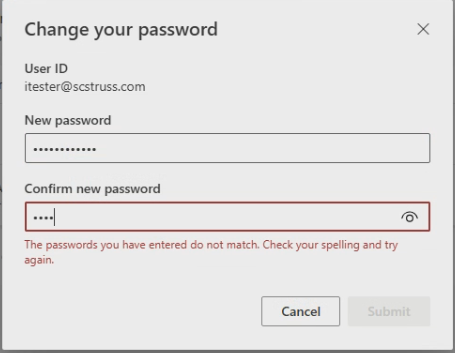
- Enter your new password and click "Submit"
- You should then see a pop-up window telling you your password has been changed.
- Now you need to make sure your PC is synced with the new password. Make sure you are connected to the SCS network, either in an SCS office or connected to the VPN.
- Lock your PC by clicking the power icon and then the "Lock" option
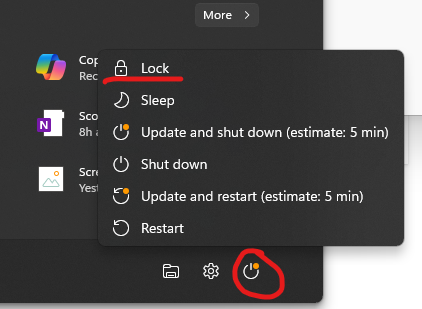
- Log back in using your new password.
**Please note that this password is also used for your email account and VPN login. If you have your SCS email on your phone, you’ll eventually get prompted to enter the new password to continue accessing email on it.
Was this article helpful?
That’s Great!
Thank you for your feedback
Sorry! We couldn't be helpful
Thank you for your feedback
Feedback sent
We appreciate your effort and will try to fix the article